> ## Documentation Index
> Fetch the complete documentation index at: https://docs.bobyard.com/llms.txt
> Use this file to discover all available pages before exploring further.
# Advanced functionality
## Compare pages
In the navbar of the project files page, you can access the compare pages tool.
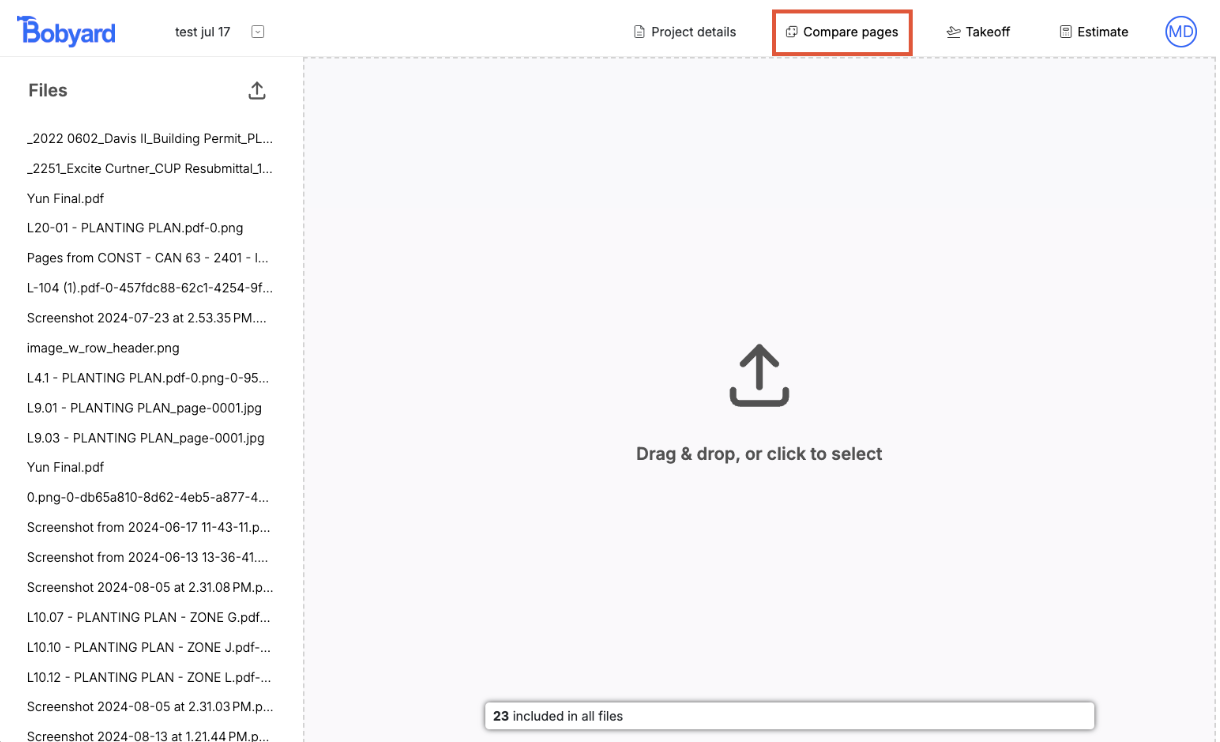 To use the compare pages tool, select a page with the red drop down and another page with the blue drop down and click the solid blue compare button.
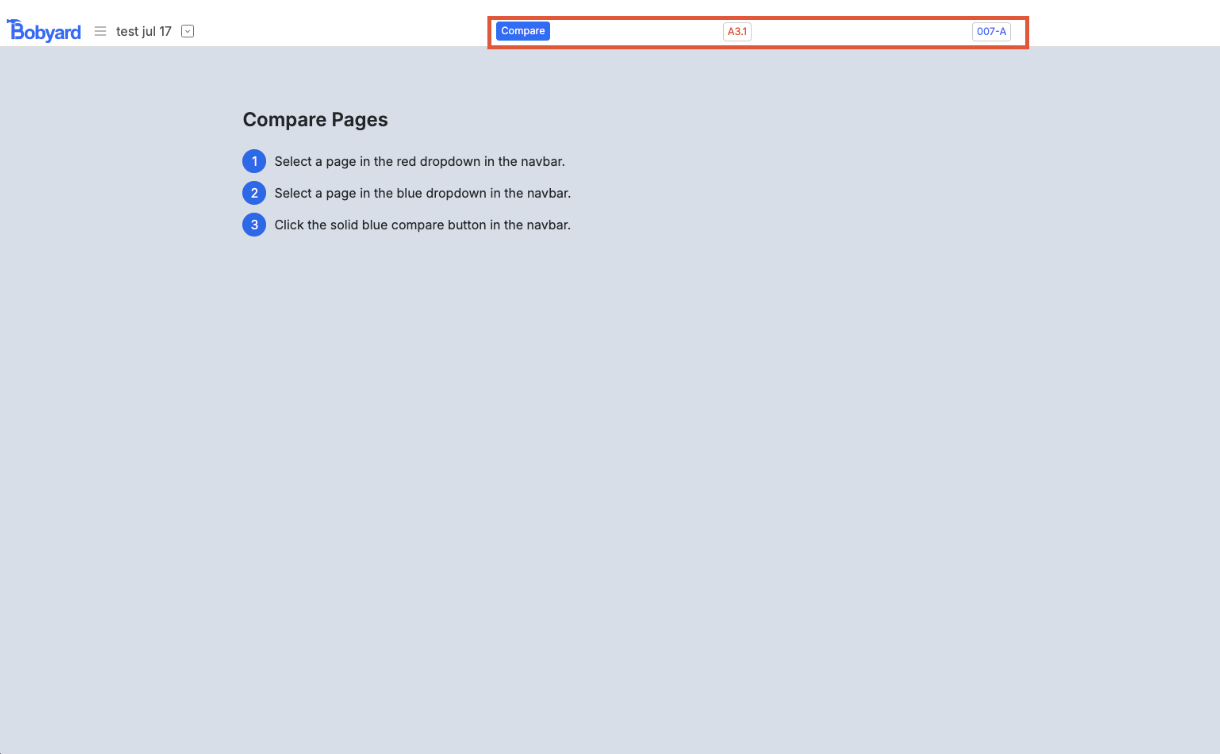 The result is the red page placed behind the blue with all lines turned red on a white background. The blue page’s lines are turned blue and the background is turned transparent. You can drag, pinch, and scroll to navigate around the page. You can also drag and resize the blue page to realign them.
## Takeoff settings
By clicking on your profile in the top right on any of the pages, you are taken to the profile/settings pages for Bobyard.
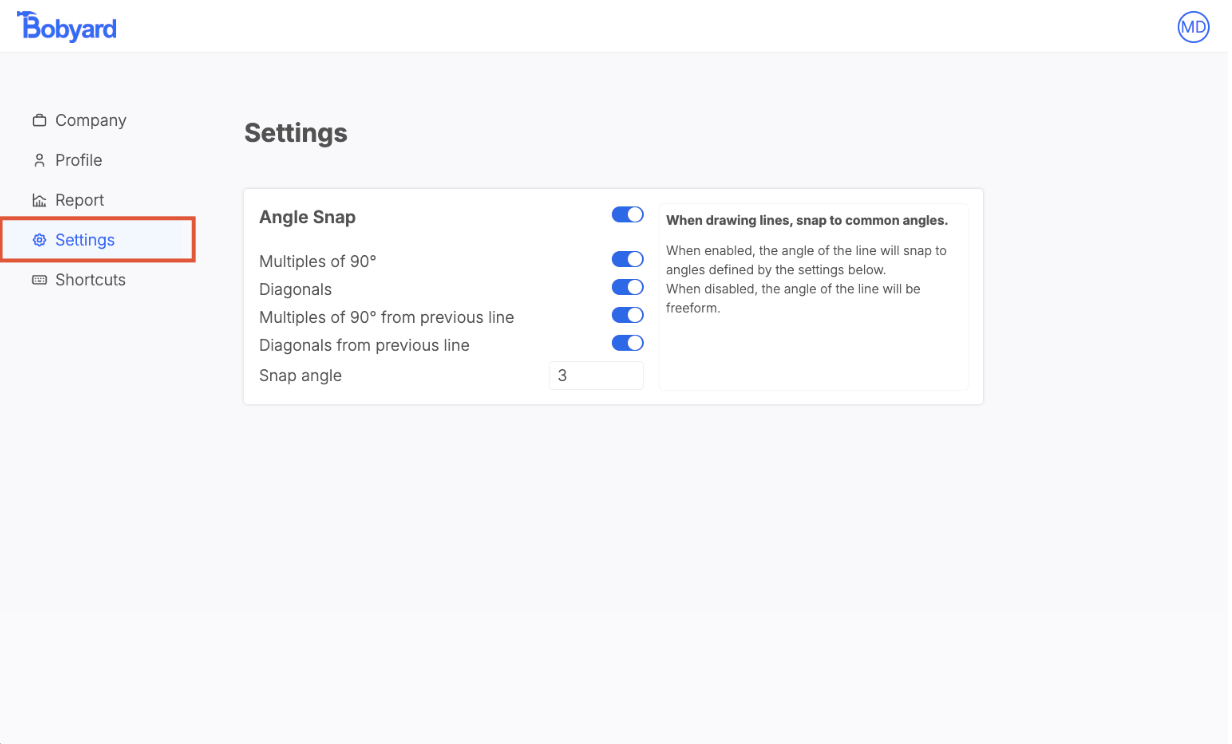
There is a tab on the left for ‘settings.’ This is where you can toggle on and off and customize the line snapping in your drawings.
The result is the red page placed behind the blue with all lines turned red on a white background. The blue page’s lines are turned blue and the background is turned transparent. You can drag, pinch, and scroll to navigate around the page. You can also drag and resize the blue page to realign them.
## Takeoff settings
By clicking on your profile in the top right on any of the pages, you are taken to the profile/settings pages for Bobyard.
There is a tab on the left for ‘settings.’ This is where you can toggle on and off and customize the line snapping in your drawings.
 ### Angle Snap
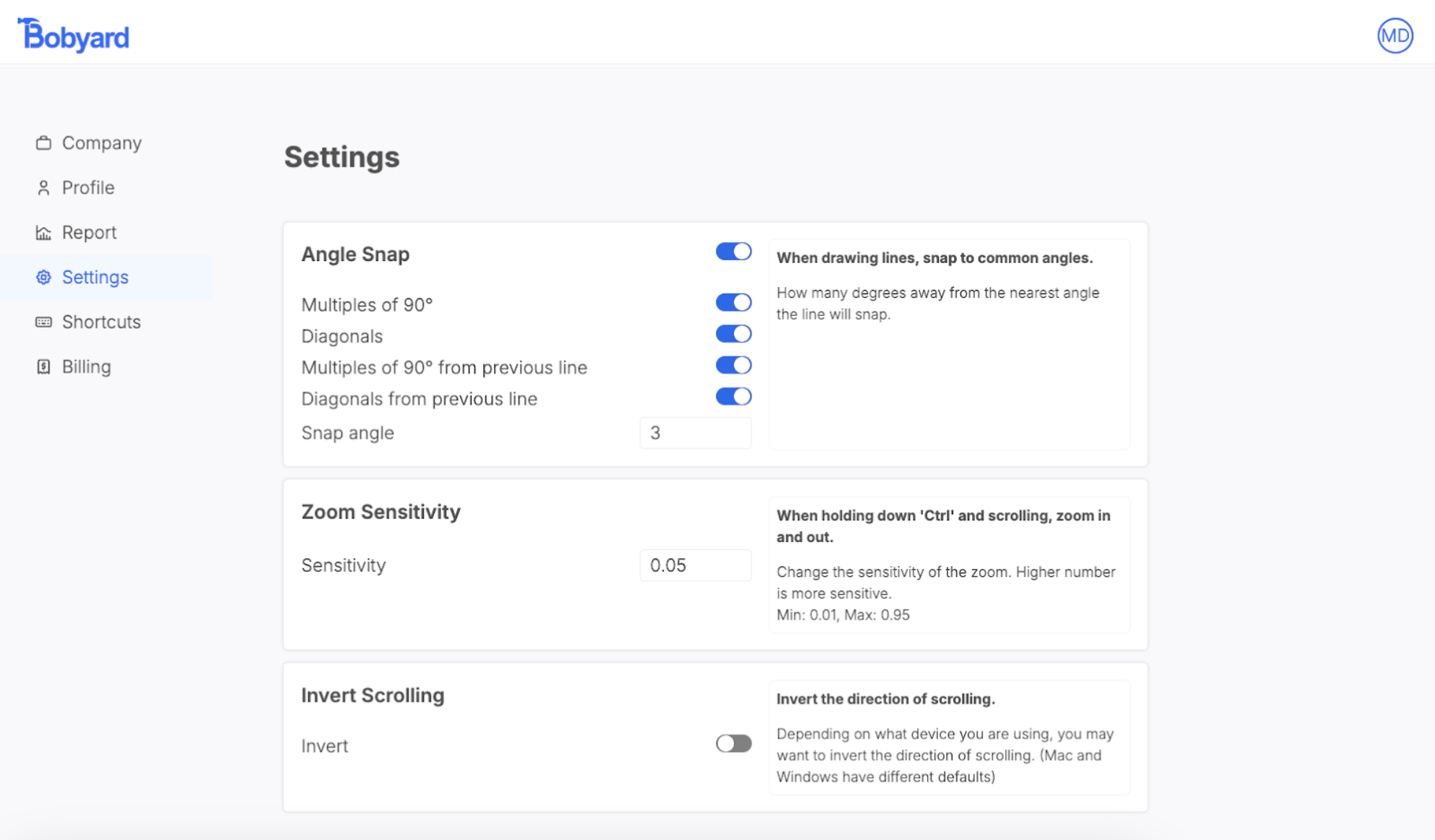
When drawing lines, snap to common angles.
Multiples of 90°
The line will snap to 0°, 90°, 180°, and 270° relative to the screen.
Diagonals
The line will snap to 45°, 135°, 225°, and 315° relative to the screen.
Multiples of 90° from previous line
The line will snap to 0°, 90°, 180°, and 270° relative to the previous line that was just drawn.
Diagonals from previous line
The line will snap to 45°, 135°, 225°, and 315° relative to the previous line that was just drawn.
Snap angle
How many degrees away from the nearest angle the line will snap.
### Zoom sensitivity
This is a number before 0.01 and 0.95 for how sensitive the control + scroll zoom is. A higher number is more sensitive.
### Angle Snap
When drawing lines, snap to common angles.
Multiples of 90°
The line will snap to 0°, 90°, 180°, and 270° relative to the screen.
Diagonals
The line will snap to 45°, 135°, 225°, and 315° relative to the screen.
Multiples of 90° from previous line
The line will snap to 0°, 90°, 180°, and 270° relative to the previous line that was just drawn.
Diagonals from previous line
The line will snap to 45°, 135°, 225°, and 315° relative to the previous line that was just drawn.
Snap angle
How many degrees away from the nearest angle the line will snap.
### Zoom sensitivity
This is a number before 0.01 and 0.95 for how sensitive the control + scroll zoom is. A higher number is more sensitive.
 ### Invert Scrolling
Depending on what kind of device you have (Mac or windows), you may need to invert your scrolling. This impacts the follow actions on takeoff:
* Scrolling up and down on the drawing
* Scrolling left and right on the drawing while holding down ‘shift’
* Zooming in and out on the drawing while holding down ‘control’
## Takeoff keybinds
In the ‘shortcuts’ tab in the profile/settings pages, you can customize the primary and secondary keybind shortcuts for the takeoff page. The majority of the tools on the takeoff page have customizable shortcuts for ease of use.
### Invert Scrolling
Depending on what kind of device you have (Mac or windows), you may need to invert your scrolling. This impacts the follow actions on takeoff:
* Scrolling up and down on the drawing
* Scrolling left and right on the drawing while holding down ‘shift’
* Zooming in and out on the drawing while holding down ‘control’
## Takeoff keybinds
In the ‘shortcuts’ tab in the profile/settings pages, you can customize the primary and secondary keybind shortcuts for the takeoff page. The majority of the tools on the takeoff page have customizable shortcuts for ease of use.
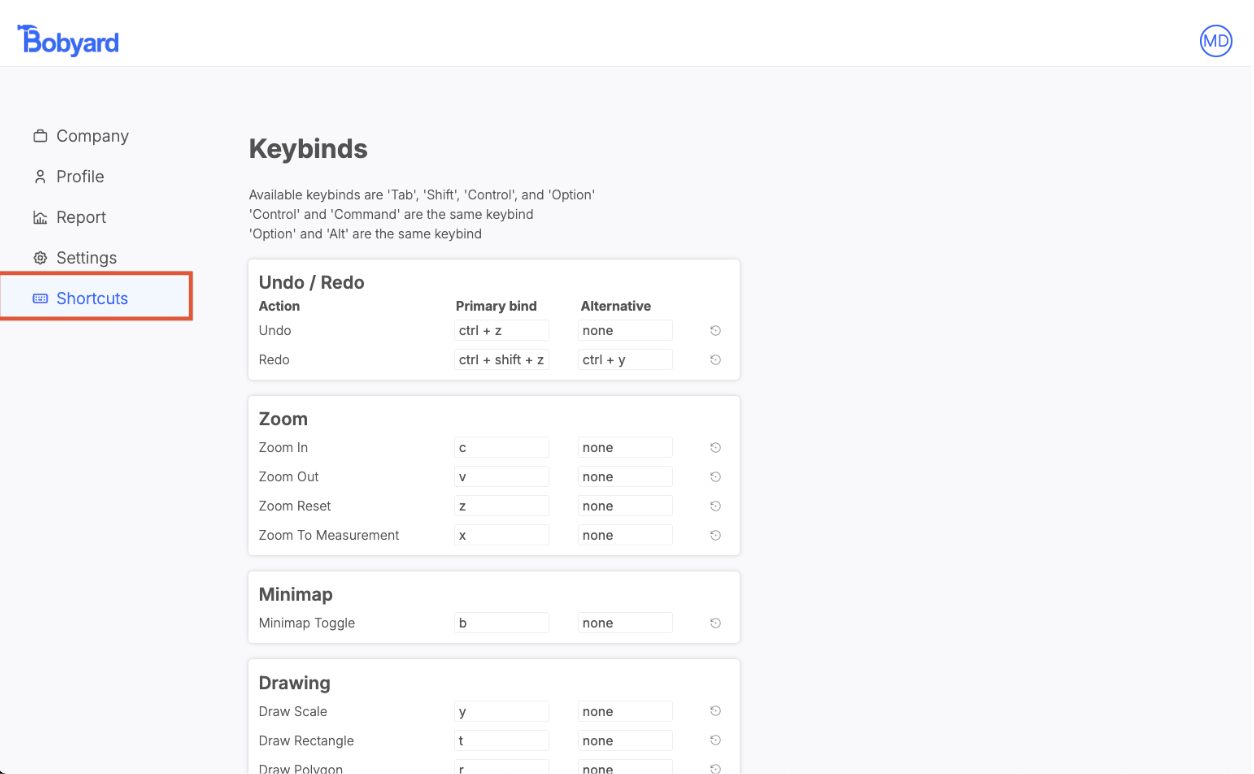 To set a shortcut, click on a cell and type in the shortcut. Your shortcut can include control, shift, etc.
You can also click on multiple cells before typing the shortcut to apply that shortcut to multiple cells.
Click on the revert button will return both primary and secondary back to their defaults.
## Report
In the ‘Report’ tab of the profile/settings pages, you can see a quick overview of the number of dots (counts), measurements and pages created.
### Filter
You can filter the results by the entire company, a specific project, or a specific user.
To set a shortcut, click on a cell and type in the shortcut. Your shortcut can include control, shift, etc.
You can also click on multiple cells before typing the shortcut to apply that shortcut to multiple cells.
Click on the revert button will return both primary and secondary back to their defaults.
## Report
In the ‘Report’ tab of the profile/settings pages, you can see a quick overview of the number of dots (counts), measurements and pages created.
### Filter
You can filter the results by the entire company, a specific project, or a specific user.
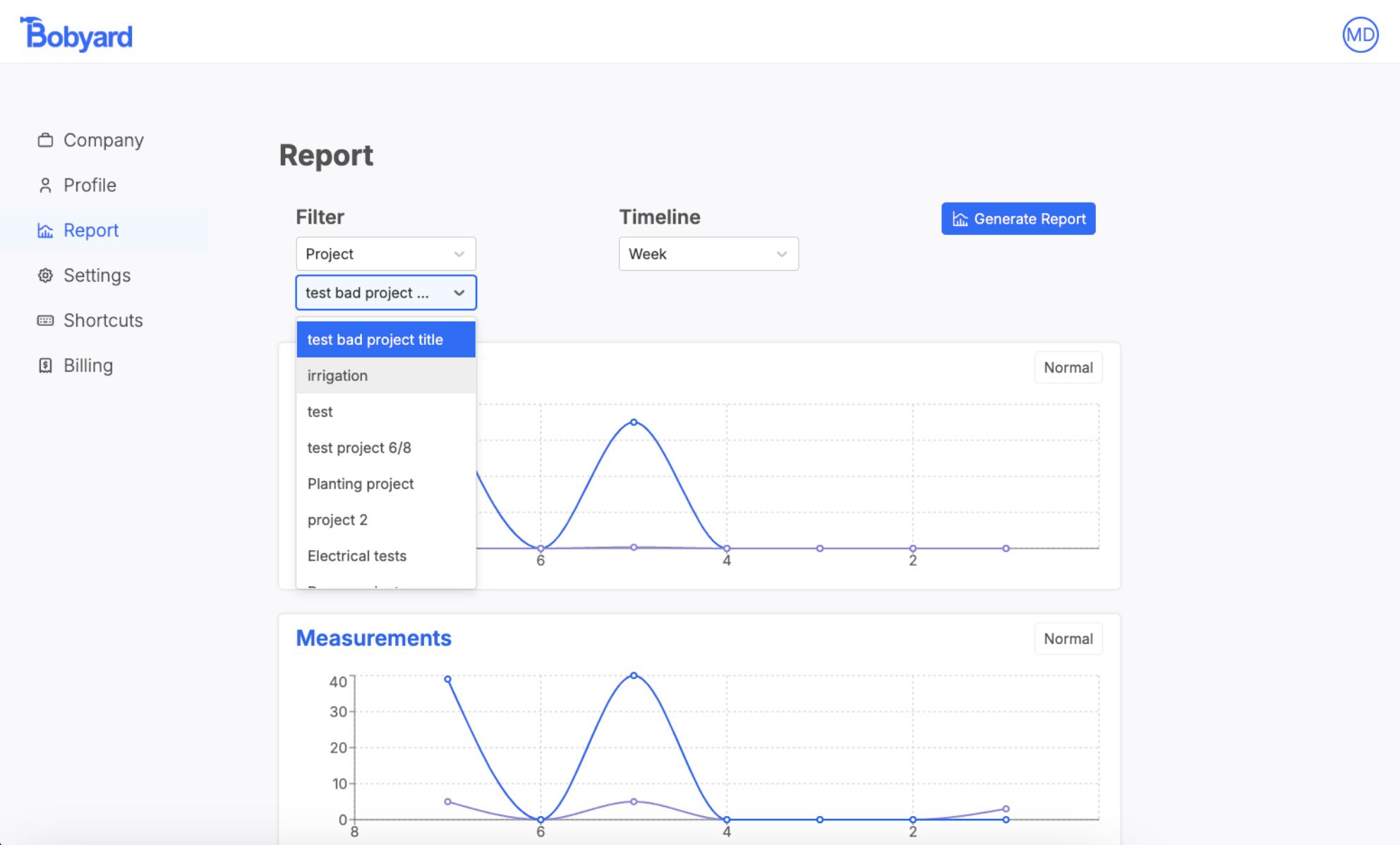 If you select a project or user, a second drop down menu will appear for you to choose.
### Timeline
You can compile results for the last day, week, month or year.
### Generate reports
Once you have selected a filter and a timeline click on the blue generate report button. Once created, you will see three plots (dots, measurements, and pages)
Clicking on the ‘Normal’/’Cumulative’ button will toggle the format of the graph.
If you select a project or user, a second drop down menu will appear for you to choose.
### Timeline
You can compile results for the last day, week, month or year.
### Generate reports
Once you have selected a filter and a timeline click on the blue generate report button. Once created, you will see three plots (dots, measurements, and pages)
Clicking on the ‘Normal’/’Cumulative’ button will toggle the format of the graph.
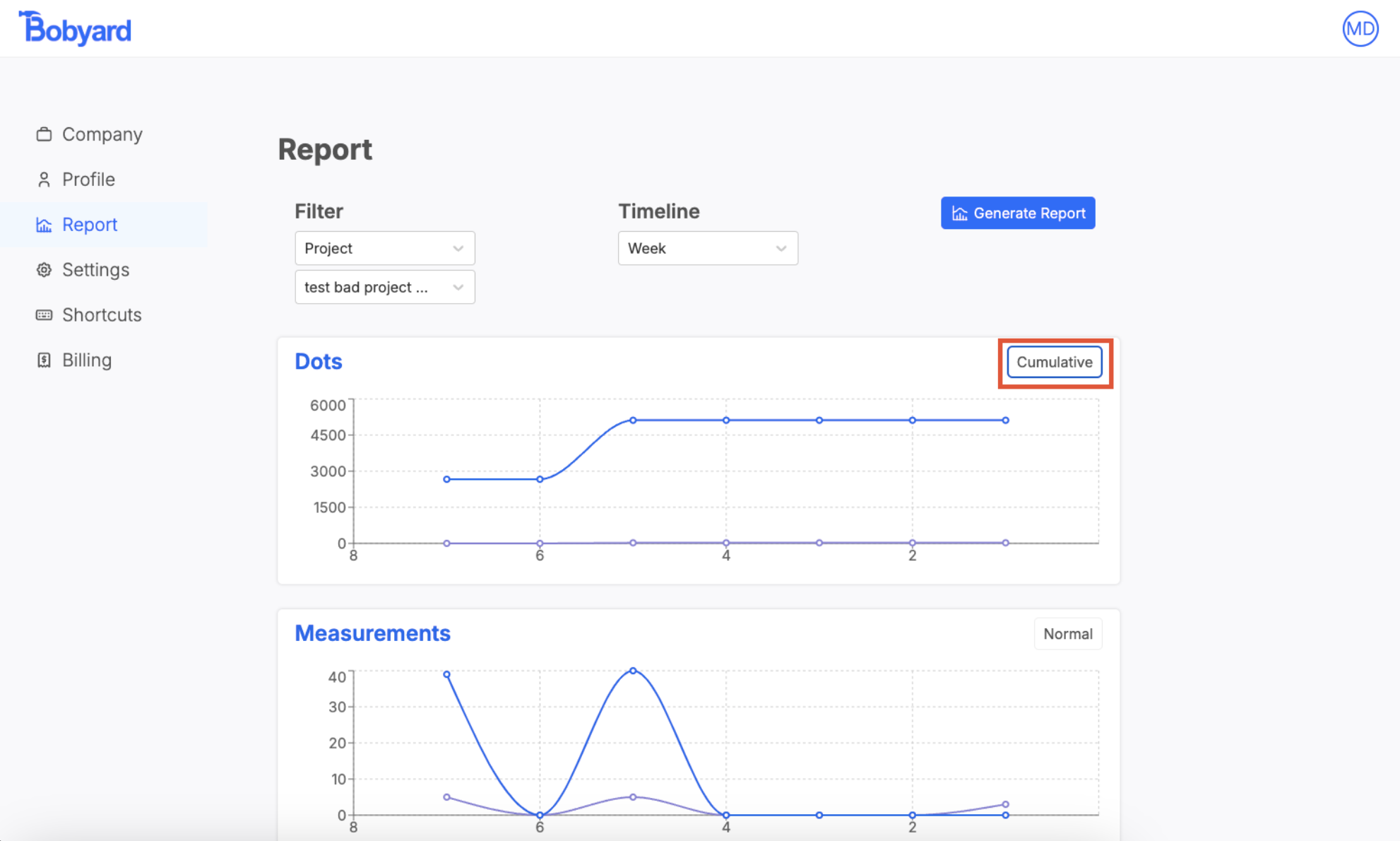 Dots
Dots\_inferenced is the number of dots made by Bobyard’s AI
Dots\_created is the number of dots manually created in the software by a user
Dots
Dots\_inferenced is the number of dots made by Bobyard’s AI
Dots\_created is the number of dots manually created in the software by a user
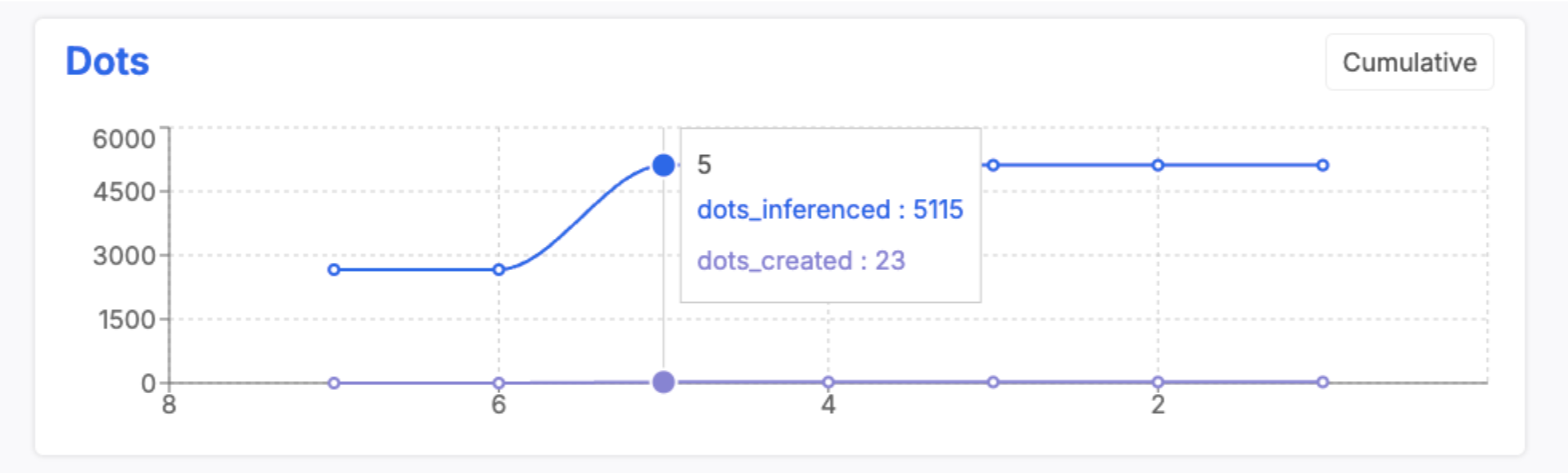 Measurements
\_inferenced is the number of measurements created by Bobyard’s AI
Measurements\_created is the number of measurements created in the software way a user
Pages
Pages\_uploaded is the number of pages uploaded (a pdf has many pages)
Pages\_taken off is the number of pages with measurements on them
Pages\_ai prepped is the number of pages prepped for an AI takeoff
Measurements
Measurements\_inferenced is the number of measurements created by Bobyard’s AI
Measurements\_created is the number of measurements created in the software way a user
Pages
Pages\_uploaded is the number of pages uploaded (a pdf has many pages)
Pages\_taken off is the number of pages with measurements on them
Pages\_ai prepped is the number of pages prepped for an AI takeoff