Auto count
There are 4 steps for auto counts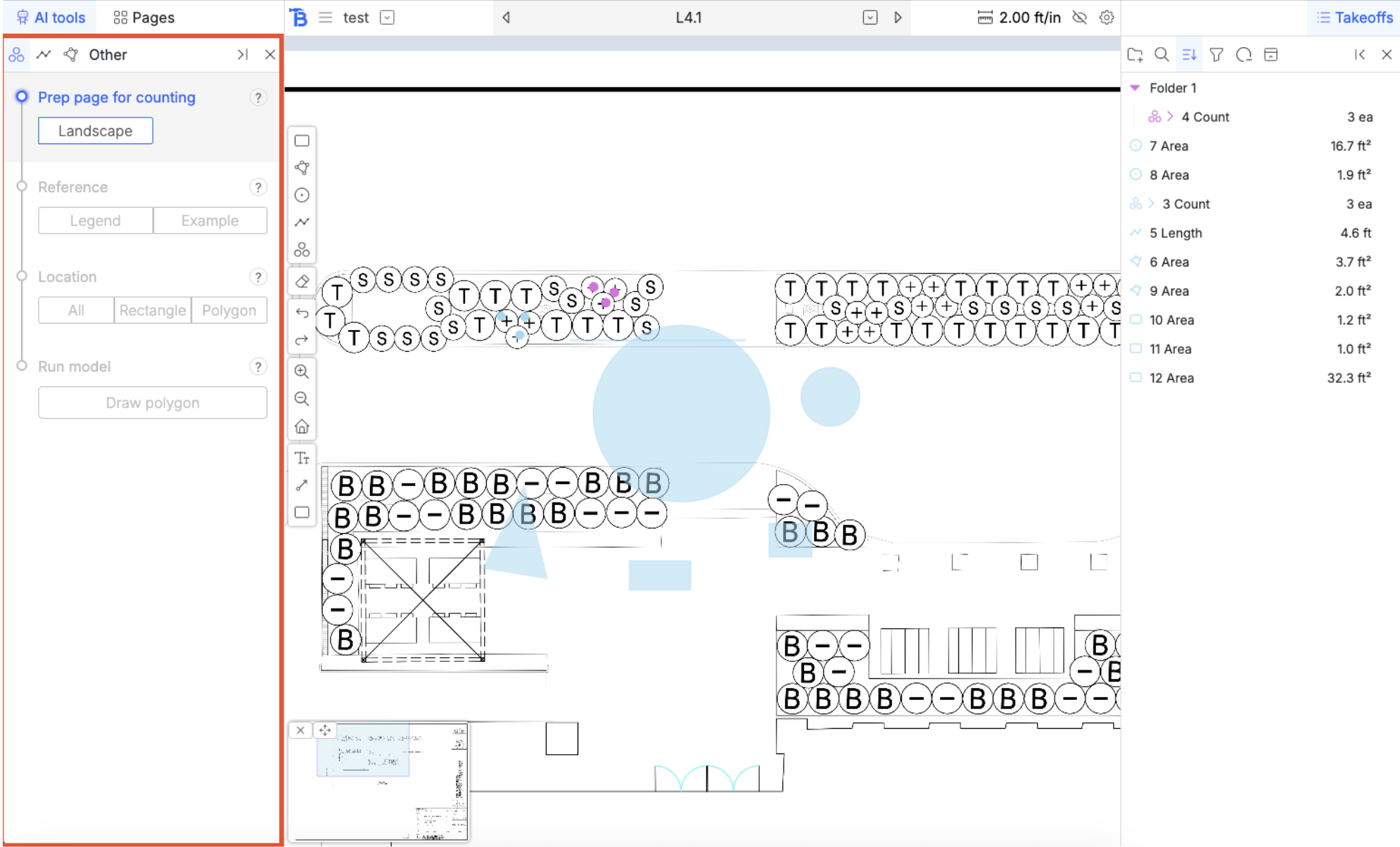
Prep page
Simply click “landscape” to prep the page for counting. This process takes up to 30 - 40s on larger pages. You can prep multiple pages at the same time.Reference
Our AI models only count what you tell it to. There are two ways to tell it what to look for.Legends
The first one is with a legend. Once you select “legend” you will be able to create a new legend with the plus button. The new legend is empty and can be populated in one of three ways. You can add symbols to the legend multiple times.- Adding an individual symbol. When this tool is activated, all the symbols that our models see are highlighted in blue on the drawing. Clicking on one of them will add it to the model. You can also draw a rectangle around a crop of a symbol if the model does not see it. Try to get a tight crop for best performance.
- Adding a whole table found by the AI. When we prep the page we also ask the model to look for legends. When this tool is activated all the legends spotted by the model will be highlighted blue. Click on them will add all the symbols and extract the contents of the legend (like name and specs)
- Adding a table by manually drawing out a section. You can draw a rectangle around the legend that you want the model to extract. Works just like tables found by AI but you are drawing the boundary of the legend (maybe you just want the first few items in the legend)
- You can add multiple tables to a legend.
- Double click on the legend to rename
- The currently selected legend that you will count with is highlighted in blue
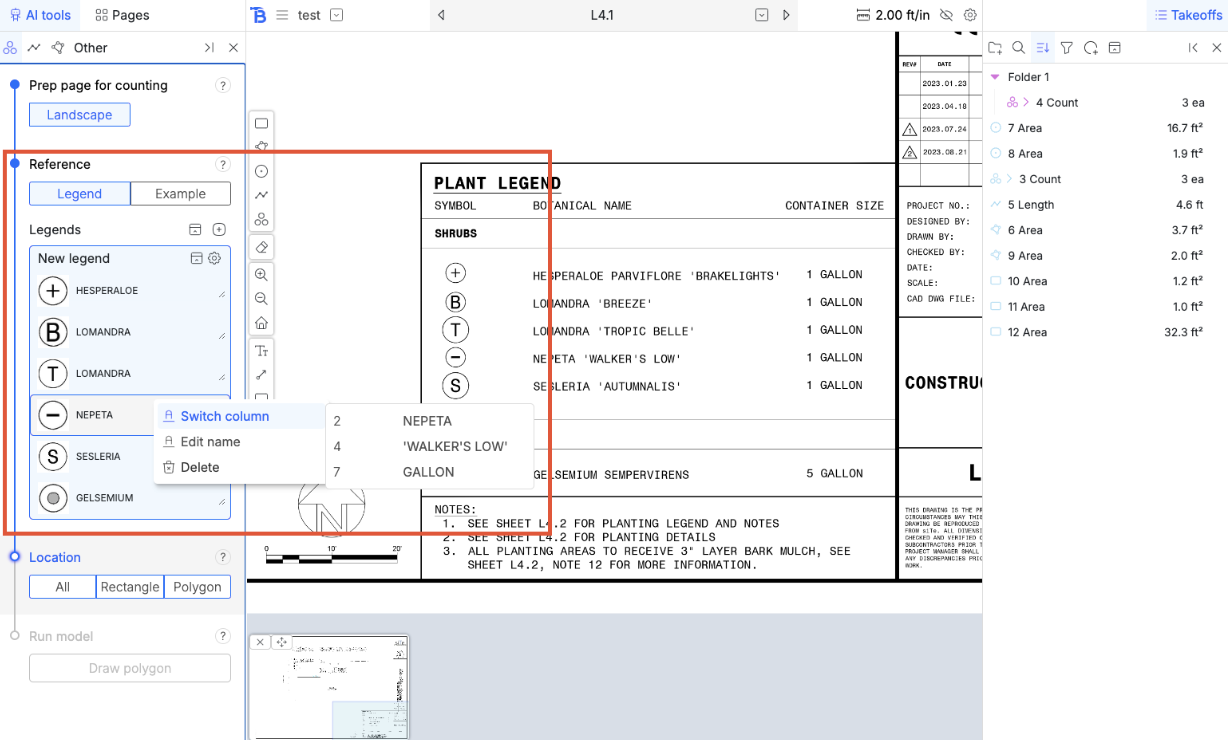
- Collapse
- Preview (show a grid of symbols)
- View (symbols + name)
- Add entry (add one entry manually)
- Populate with AI found table
- Populate by manually drawing a section
- Rename the legend
- Switch the column for the entire legend
- Delete legend
Example
This option lets you choose one example symbol from the legend to use as a reference for counting. You will pick the reference once you start running the model.Location
Our AI models only count where you tell it to. There are three ways to tell it what to look for.All
The model will just go through the entire page and count everywhere, except the areas inside legends.Rectangle
Draw a rectangular area for the model to count inPolygon
Draw a polygon area for the model to count inRun model
When all the options are selected and the model is ready, this button will turn solid blue. After you click it, you will need to give it the reference and the location depending on how you set up the model. If you chose ‘Example’ as the reference, you will need to choose a symbol as a reference by clicking on one. If you chose ‘legend’, you don’t need to do anything for this step. Then, if you chose ‘Rectangle’ you would draw the rectangle after choosing a reference. Same for “polygon”. No action is needed for “All.” After these two, the model will run and count everything, adding them to the takeoff sidebar. Then it will cycle through from the top, asking you for a reference if you chose ‘reference’ and then a location. It will keep cycling until you hit ‘escape’Outputs
In the takeoff sidebar, the models will output line items corresponding to items found in the drawing. If a legend was used as a reference, a folder is made for each entry in the legend. Expanding the count previews will reveal all the crops from the dots that the model counted. The border colors range from red to green and signify confidence, they are also sorted from low to high so you can easily spot mistakes, if any.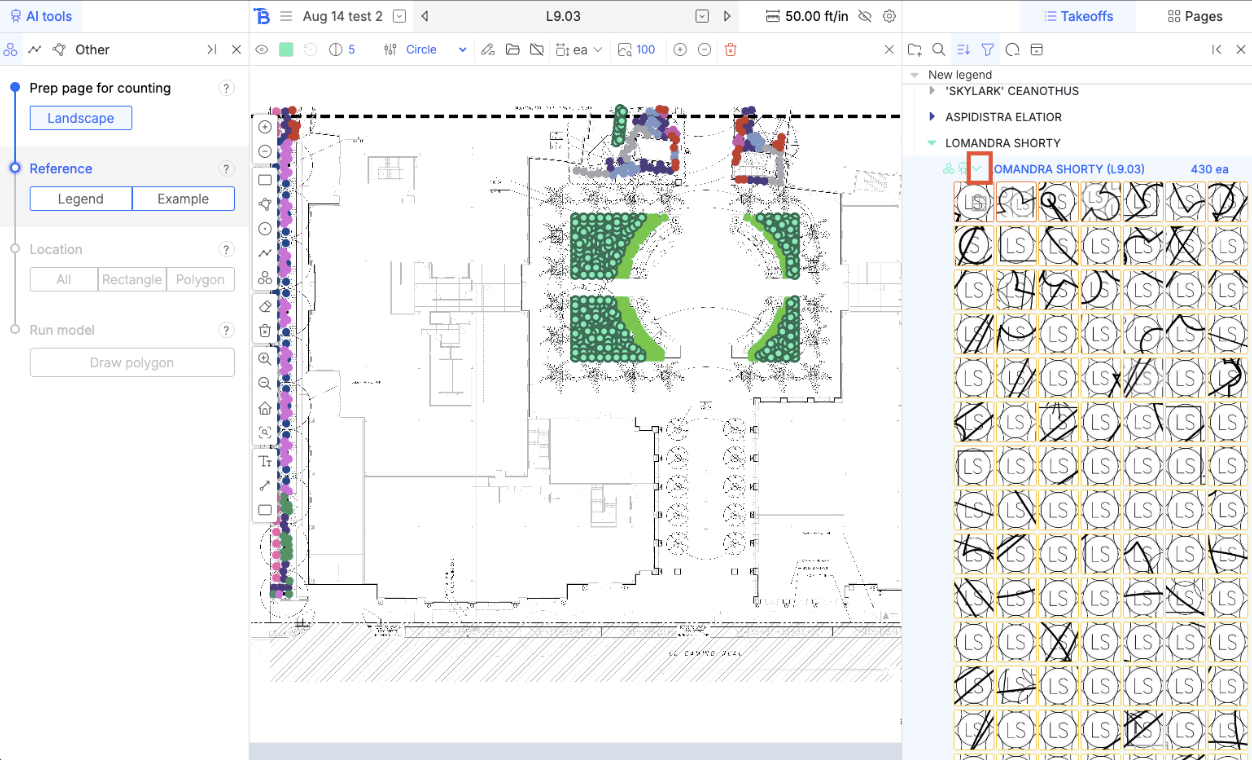
Correcting outputs
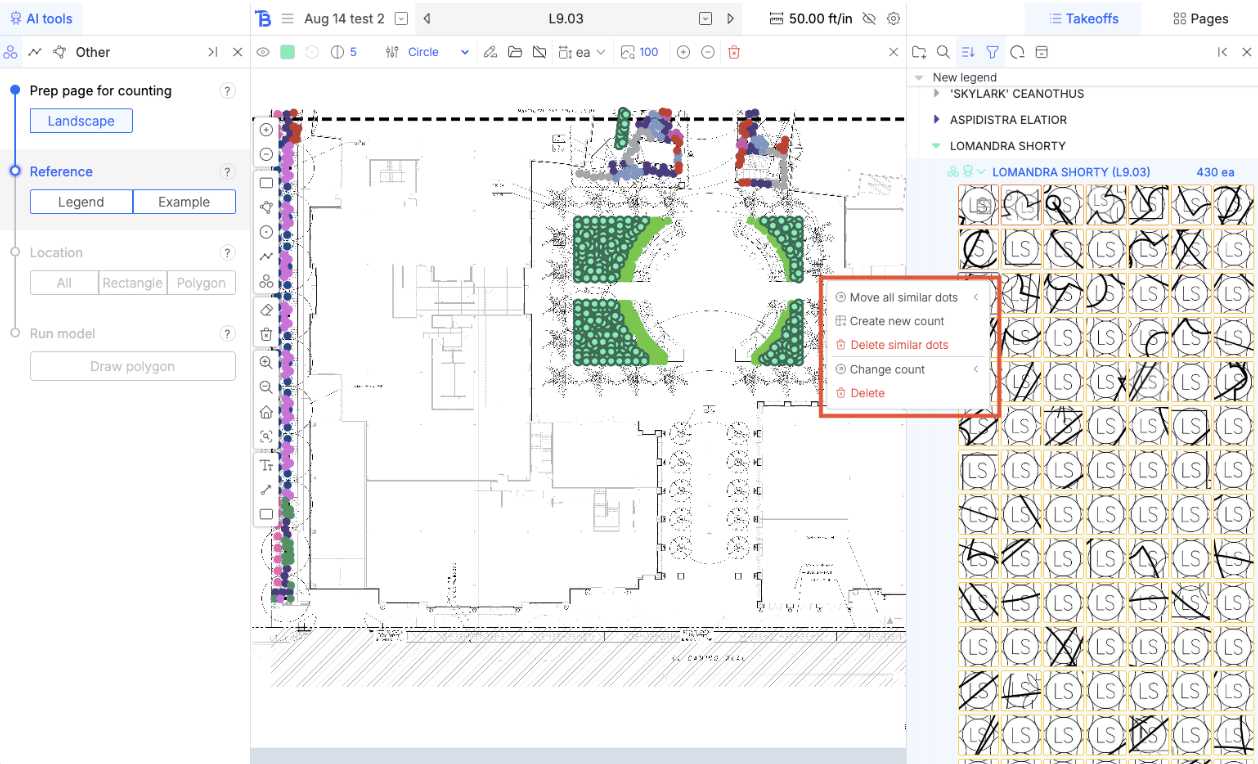
If a legend was used, you have the ability to manage the entries in the legend (add new entries that were left out) or move similar symbols around together. Clicking on the red ‘x’ in the top right when you hover over a preview will delete the dot. Right clicking on a preview or clicking on the gear symbol in the top left of the crop while hovering opens up a menu:- Move all similar dots: This tool lets you move all dots that are more similar to the one you right clicked on than the current legend entry that are associated with the new count that you choose from the drop down.
- Create new count: this tool gets all the dots that are more similar to the one you right clicked on than the current legend entry they are associated with and creates a new legend entry for them. The doc you right clicked on will be used as the legend entry example
- Delete similar dots: this tool deletes all dots that are more similar to the one you right clicked on than the current legend entry they are associated with
- Change count: lets you move this one dot to a different count
- Delete: deletes this one dot.