
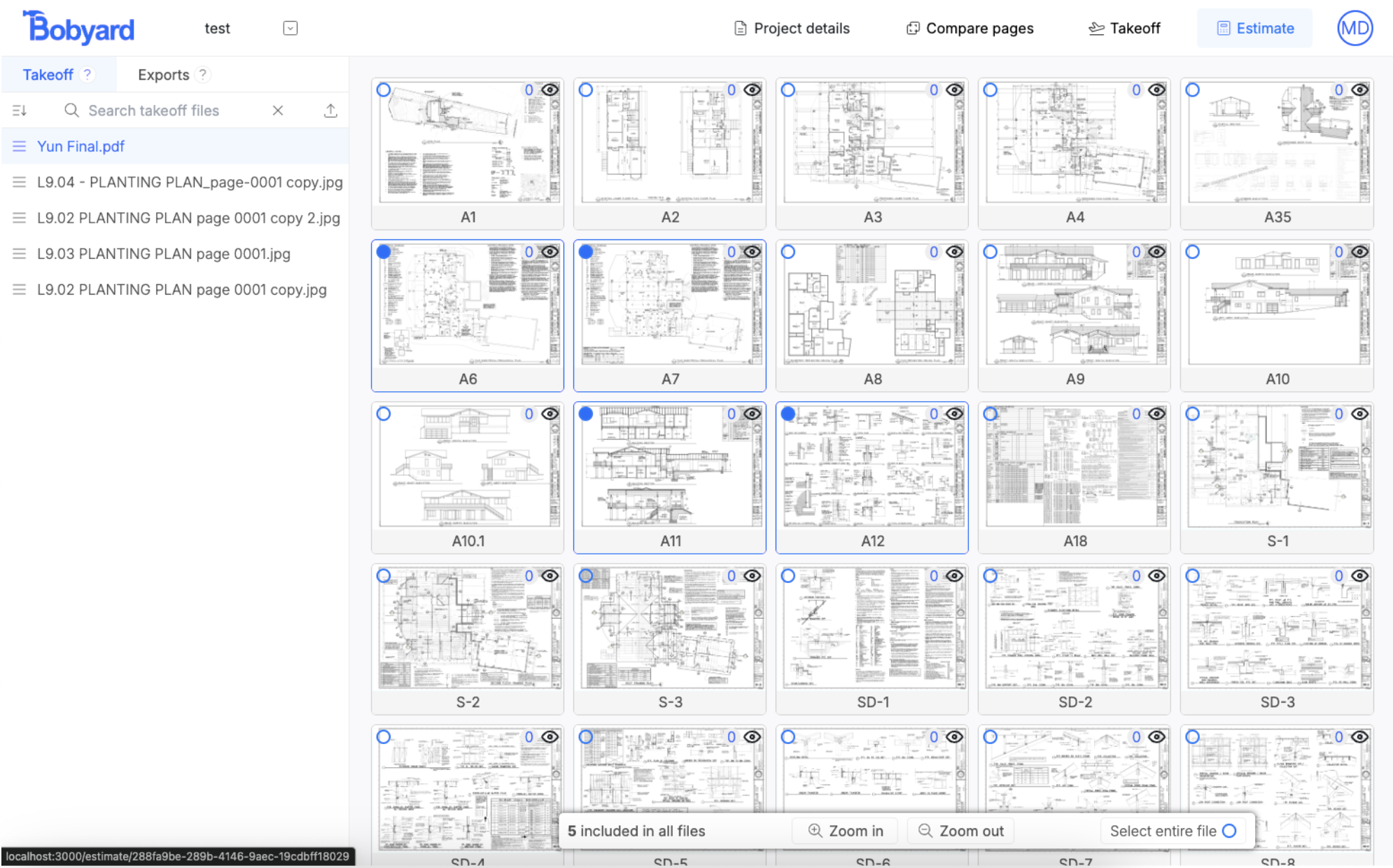
- The navbar
- The sidebar
- The page previews
- And the toolbar
Navbar
Left hand side
- Bobyard logo takes you back to the dashboard
- The project name opens a details popup for project address and details
- The down arrow lets you navigate to the files page of other projects
Navigation buttons
- Project details opens up the project details popup
- Compare pages takes you to the corresponding tool
- Takeoff page
- Estimate page
- Profile page
Sidebar
The sidebar has two tabs. One for takeoff files and one for exports.Takeoff files
There is a toolbar that lets you:- Sort the files
- Search the files
- And upload more files
- Toggle the inclusion for all pages in that file
- Rename file
- Download file
- Delete file
Exports
When you export the estimate table (as csv, excel, or pdf), they are also saved here so you can go back to view them. There is a toolbar that lets you:- Sort the files
- Search the files
Pages preview
When in takeoff files mode on the sidebar, the preview is filled with a grid of pages.- Left clicking on them toggles whether they will be included in the takeoff or not.
- Right clicking on a page will open up an options menu for that page to rename, duplicate, and delete pages.
- Click on the small eye symbols on the top right corner of each page opens up a larger preview popup. You can use left and right arrows to navigate between pages and zoom in and out by pinching or clicking on the buttons in the toolbar.
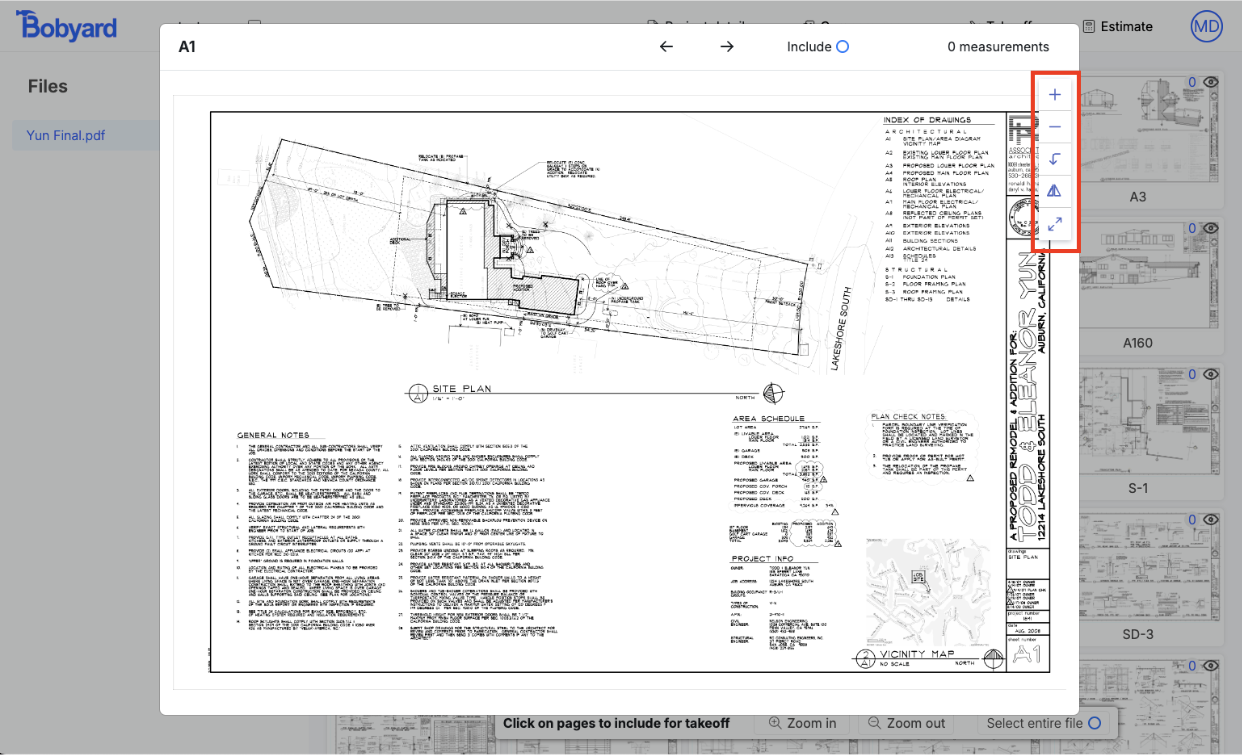
Toolbar
This is only available for takeoff files.- It shows you how many pages are included for takeoff
- Lets you zoom in
- And zoom out in the previews
- Toggle all pages in the file for takeoff